April 15, 2026
How to Import an existing Google Drive folder
Google recently updated how third-party apps like SchoolCam connect to Google Drive. If you've noticed an extra step when selecting a folder, here's everything you need to know — it's a small change, and the rest of the process works exactly as before.
What changed?
As part of a broader security update, Google now requires you to sign in to your Google account each time a third-party app requests access to your Drive. This means that every time you go to import a folder into SchoolCam, you'll be prompted to log in before the folder picker opens.
This is a change on Google's side, not SchoolCam's — it applies to all third-party apps that integrate with Google Drive. The good news is that the login process takes just a few seconds, and once you're through it, everything else works the same as always.
Nothing about how SchoolCam uses your folders has changed. Your existing imports, settings, and files are all intact. You're simply being asked to confirm your identity before Google opens the door.
How to import a folder: step by step
Tap "Pick a folder" in SchoolCam
You'll be taken to the Google Drive folder picker as usual.Sign in to your Google account
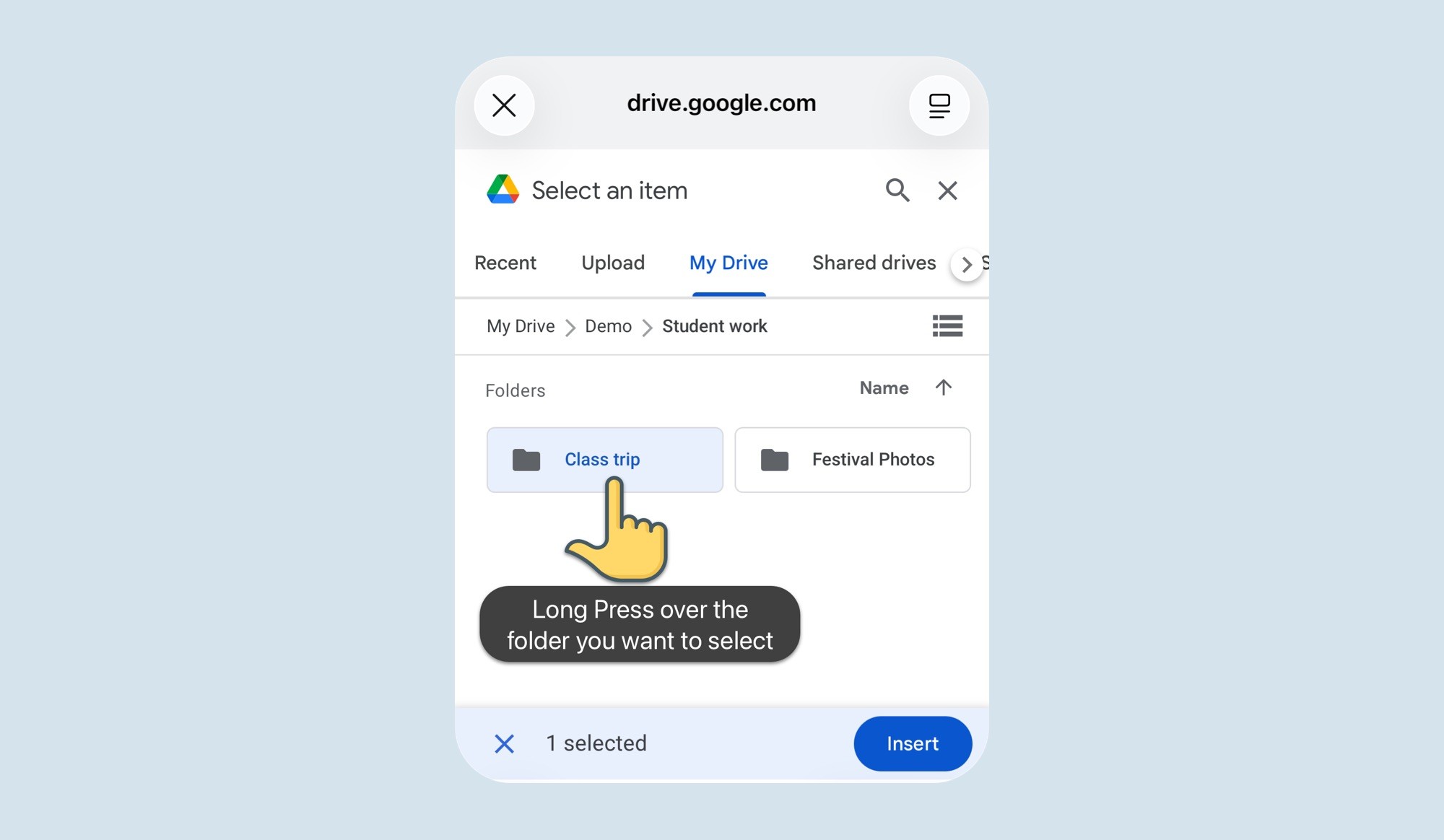
Google will prompt you to log in. Complete the sign-in — it typically takes just a few seconds.Long-press the folder you want to select
Press and hold on the folder until the Select button appears at the bottom of the screen.Tap Select
The folder is imported into SchoolCam and you're good to go.
Why the long-press?
The updated Google Drive folder picker no longer highlights a folder with a single tap the way it used to. Instead, a long-press — pressing and holding your finger on the folder for a moment — is now what triggers the selection mode and brings up the Select button.
Any other questions?
If you run into any issues or have questions about the update, feel free to reach out to our support team. We're happy to help you get back up and running quickly.