

June 9,2026
Introducing Tags in SchoolCam
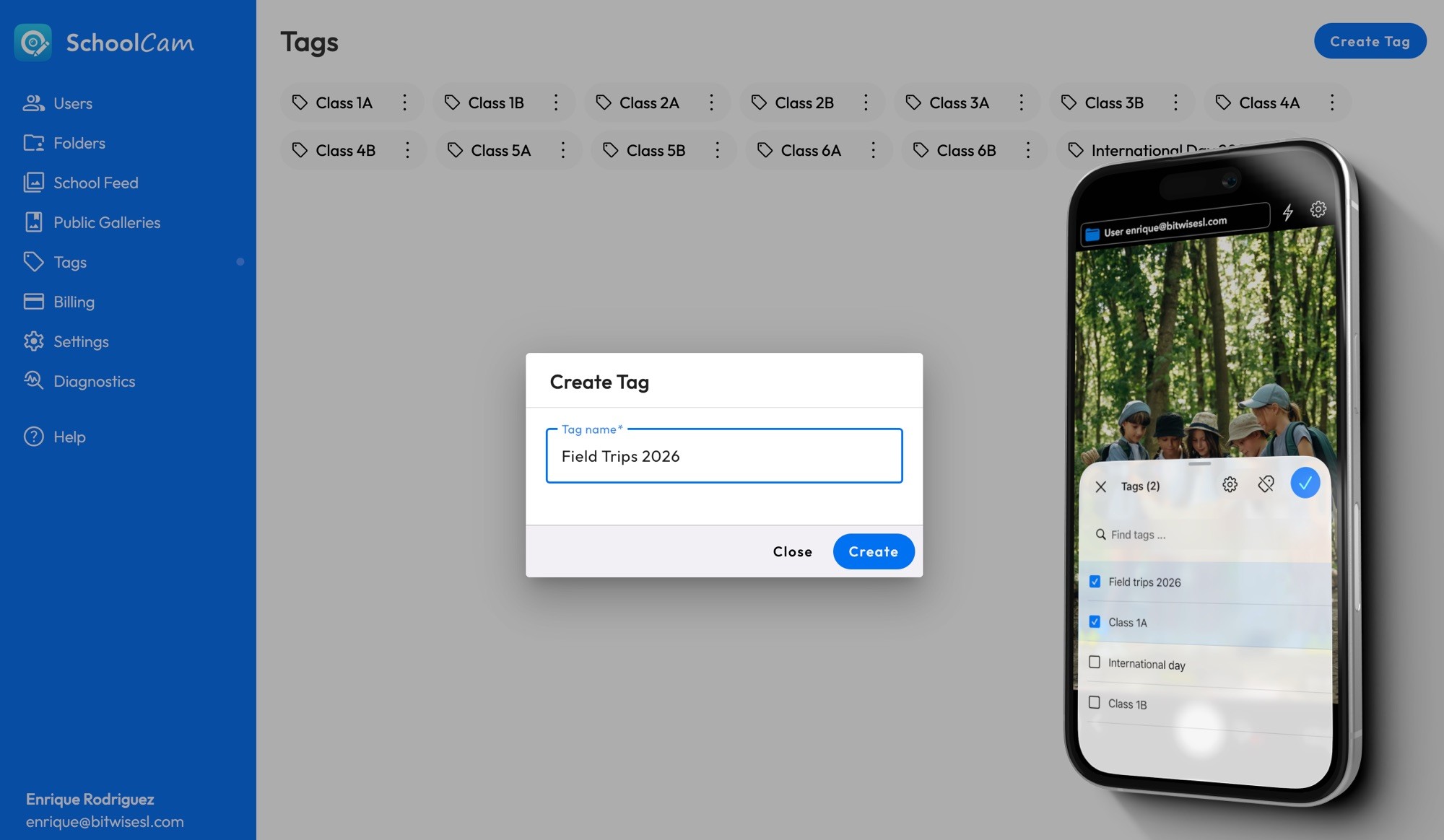
We’re excited to introduce Tags for Teams in SchoolCam, a simple but powerful way to organize, categorize, and find School photos faster.
🏷️ What are Tags?
Tags are custom labels created by a team admin that can be applied to photos.
For example, you might create tags for:
• Class Trips
• School wide events
• Label photos of specific classes
Once set up, your school staff can apply these tags while taking photos — or after — making it much easier to filter and find exactly what you need later.
⚙️ Step 1: Create Tags (Admin Setup)
To get started, a team admin needs to create tags:
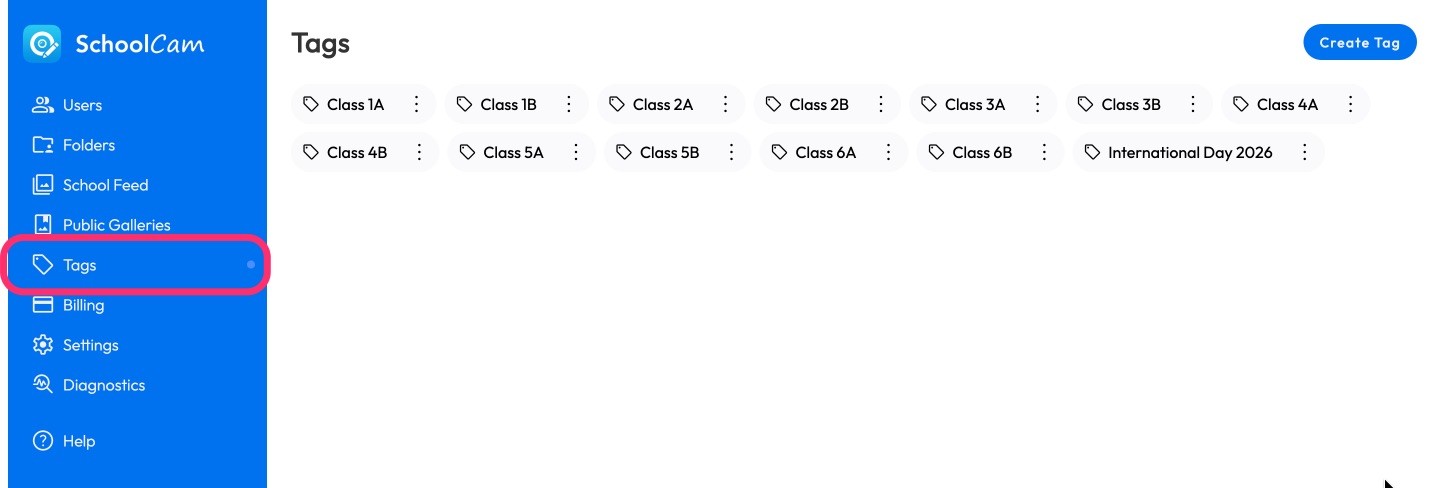
1. Go to the SchoolCam Admin Panel
2. Navigate to the Tags page
3. Create the tags your team will use
📸 Step 2: Apply Tags While Taking Photos
Applying tags is quick and easy:
1. Open the SchoolCam mobile app (iOS or Android)
2. Go to the Camera screen
3. Tap the new Tags button:
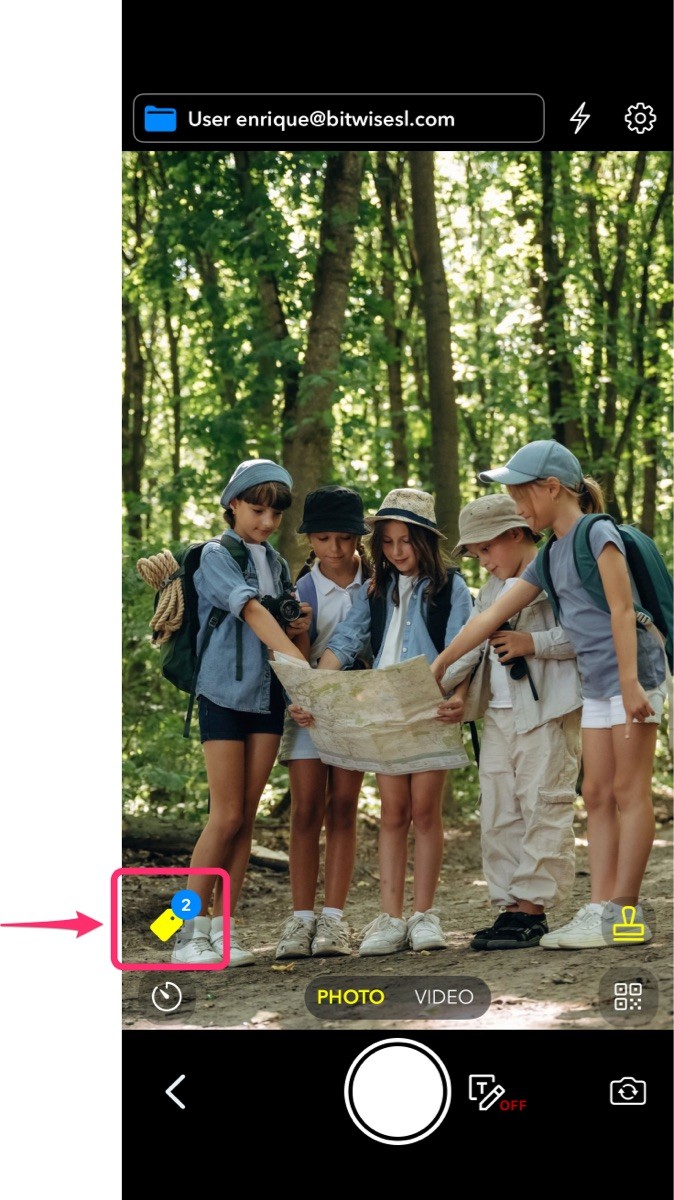
4. Select one or more tags
5. Take your photos
✏️ Step 3: Add or Edit Tags After Taking Photos
Forgot to tag a photo? No problem.
You can easily update tags anytime:
1. Go to the “My Photos” tab inside of SchoolCam
2. Open a photo
3. Add, remove, or edit tags
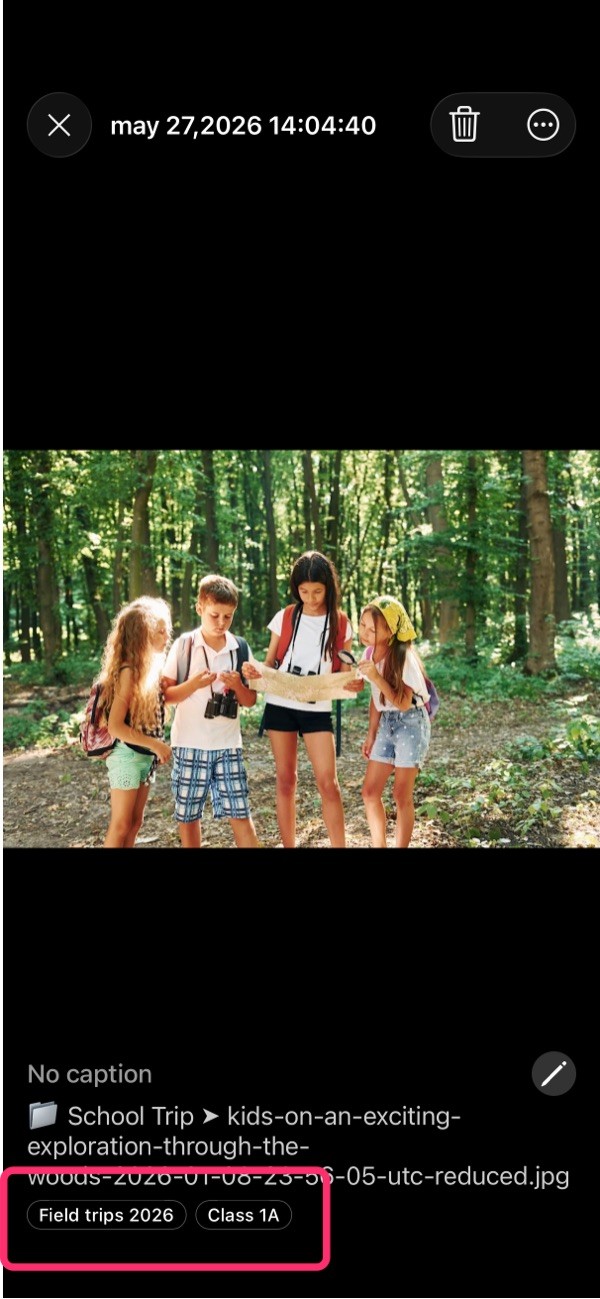
This gives your staff flexibility to apply tags before or after taking photos
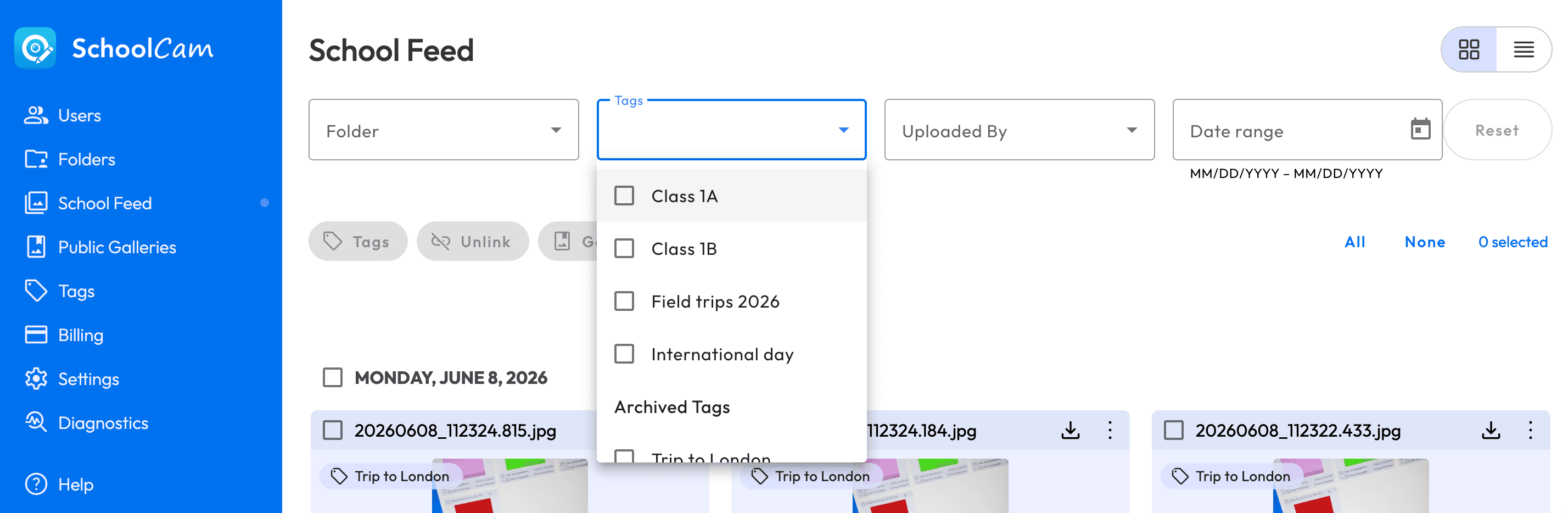
🔎 Step 4: Filter and Manage Tags in the Admin Panel
Tags really shine when reviewing and managing photos:
1. Go to the School Feed in the admin panel
2. Use the tag filters to quickly find relevant photos
We hope you will find this new feature useful!
============
Tags are available now for all SchoolCam school accounts.
If you have any feedback or ideas, we’d love to hear from you here or email us at support@schoolcamapp.com Your input helps us make SchoolCam even better.

June 2023
Waverio Reaches it’s revenue goals faster with Davton.

June 2023
